%2520in%2520Webflow.avif)

Charlie Bouvier

Account Executive
June 9, 2026
Summary of the article
Your invoice details — company name, billing address, VAT number, and billing email — are managed in Workspace settings → Billing → Billing profile. Changes you make there apply to all future invoices immediately but don't retroactively update past ones. If you're a VAT-registered business in the EU, adding a valid VAT number enables the reverse charge mechanism, meaning Webflow charges you 0% VAT and you self-account for it in your own country. The billing email doesn't have to match your Webflow account email — useful for agencies who want client invoices sent directly to a client's accountant. For corrections to past invoices, you'll need to contact Webflow Support directly.

Summarize with AI
If you need to update your company name, VAT number, or billing email for accounting purposes, you can edit these details directly from your Workspace billing settings. Changes apply to All Future Invoices from that Workspace.
1. Open your Workspace billing settings
- In the Webflow Dashboard, open the Workspace Whose billing details you want to update.
- In the left sidebar, go to Billing.

2. Edit your billing profile
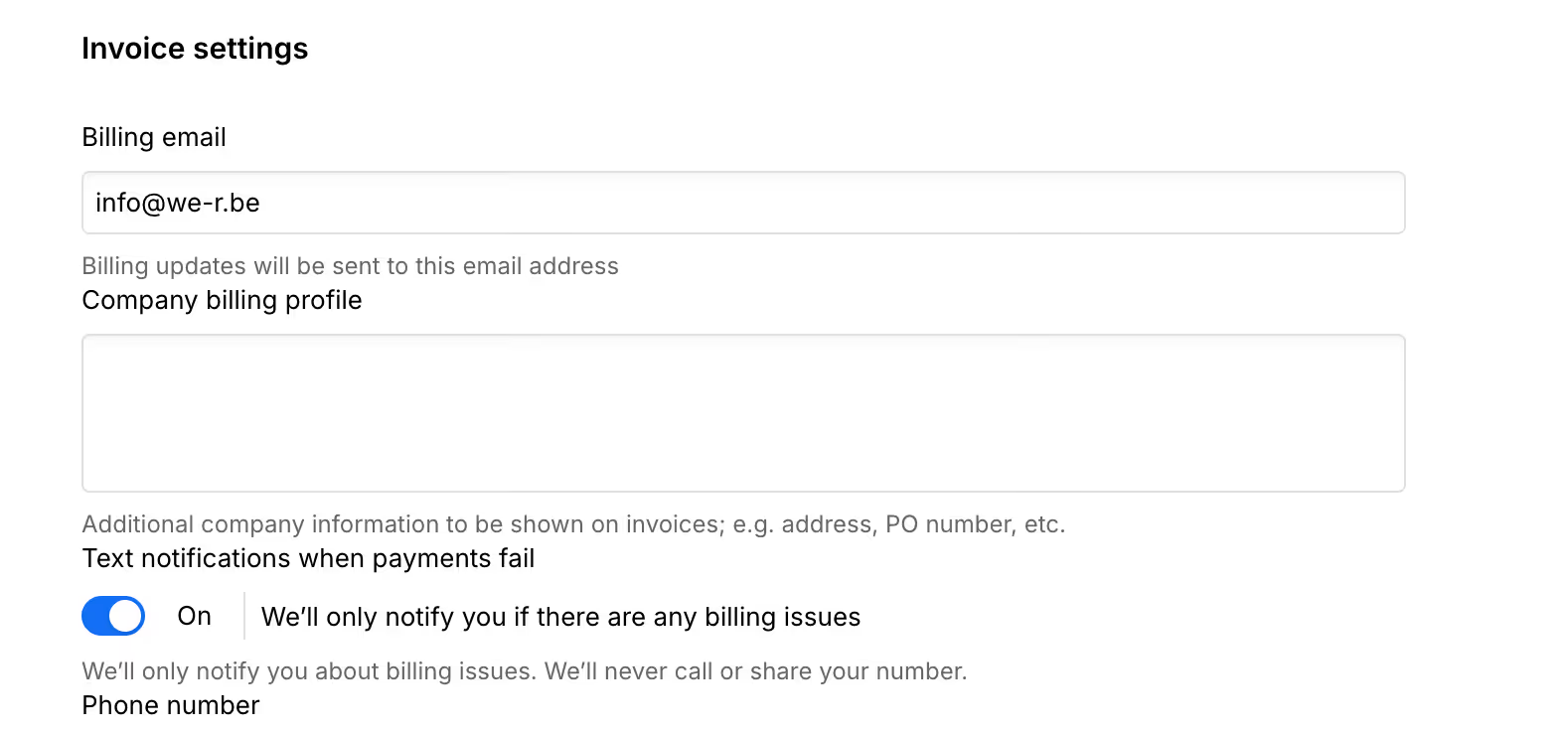
On the Billing Page, Look for the Billing profile gold Invoice details section.
Here you can update:
- Company name — the legal entity name that appears on invoices.
- Billing email — the email that receives invoice notifications and copies of receipts.
- Billing address — the full street address used for tax calculation and invoice display.
- VAT/Tax ID — your VAT number or local tax ID (GST, ABN, etc.) if applicable.
To edit:
- Update the fields you need to change.
- Click Save gold Update billing profile To apply the changes.
3. What changes immediately, and what doesn't
- Future Invoices Will show the updated company name, address, and VAT number.
- Past Invoices Remain unchanged. If you need to correct an old invoice for accounting or compliance, you'll have to contact Webflow Support To request a corrected reissue.
4. VAT reverse charge and tax exemptions
If you're a VAT-registered business in the EU, adding your valid VAT number allows Webflow to apply the Reverse charge mechanism (0% VAT on invoices, with the buyer self-accounting for VAT).
If you're a Tax-exempt organization (e.g. nonprofit, educational institution):
- Add any required tax exemption certificate number in the VAT/Tax ID field.
- Contact Webflow Support With proof of exemption if your invoices still show tax after updating your profile.
5. Double check your next invoice
After Making Changes, It's a Good Idea to Check the Next Bill Summary In Billing To confirm that the new details will appear correctly on your upcoming invoice.
If you spot an error, you can edit the billing profile again before the next charge date.
These businesses have migrated to Webflow
And their marketing teams thank us for it.