.avif)

Salomé Sperling

Lead Creative Webdesigner
April 7, 2026
Summary of the article
You can switch billing frequency for both Workspace plans and Site plans at any time from Workspace settings → Billing and Site settings → Hosting respectively. Switching from monthly to yearly charges you the full annual price immediately, minus a prorated credit for the unused days of your current monthly cycle — typically saving you 15— 20% compared to 12 monthly payments. Switching from yearly to monthly generates a large credit for the unused months of your annual plan, which offsets several months of future monthly bills before you start paying out of pocket again. The switch never affects your plan features or limits — only the billing frequency and total cost change. For agencies, a common best practice is annual billing on your own Workspace and monthly billing on client site plans for easier handoffs.

Summarize with AI
Webflow lets you switch between Monthly And Yearly Billing at any time for both Workspace plans and Site plans. Switching to annual billing typically saves you 15% — 20% Compared to paying month-by-month, while switching to monthly gives you more flexibility if you're unsure how long you'll need the plan.
1. Why switch billing frequency?
Switching from monthly to yearly:
- Save money — annual plans are discounted (usually 2—3 months free compared to 12 monthly payments).
- Simplify billing — one charge per year instead of 12 monthly charges.
- Lock in pricing — protect yourself from potential price increases during the year.
Switching from yearly to monthly:
- More flexibility — easier to cancel or downgrade if your needs change.
- Lower Upfront Cost — pay less at once, better for cash flow if you're uncertain about long-term commitment.
- Testing a plan — try a higher-tier plan monthly before committing to a full year.
2. How to switch a Workspace plan from monthly to yearly (or vice versa)
Step 1 — Open Workspace billing settings
- In the Webflow Dashboard, select the Workspace Whose billing frequency you want to change.
- Click Workspace settings In the top navigation.
- Go to the Billing Tab in the left sidebar.
Step 2 — Change billing frequency
- Find your current Workspace plan (e.g. Core, Growth, Freelancer, Agency).
- Look for a Billing Frequency Toggle Or Button Labeled “Switch to annual billing” gold “Switch to monthly billing”.
- Click the button.
Step 3 — Review proration and new charges
Webflow Will Show You A Billing summary with:
- Your current plan and how much you've already paid.
- The new annual (or monthly) price.
- Any Proration Credits (if switching from yearly to monthly) or Proration charges (if switching from monthly to yearly mid-cycle).
- The Total amount You'll be charged immediately (or credited to future invoices).
Example (monthly → yearly):
- You're on Core monthly at $28/month.
- You've already paid for this month (15 days left).
- Annual price: $252/year (save you ~$84/year).
- Webflow Credits You the Unused 15 days of your monthly cycle (~$14).
- You're charged: $252 - $14 = $238 immediately for the next 12 months.
Example (yearly → monthly):
- You're on Growth Yearly at $348/year, with 6 months left.
- Monthly price: $35/month.
- Webflow Credits You the Unused 6 months of your annual plan (~$174).
- You're charged: $35 for the first month, and the $174 credit Offsets the next ~5 months of bills.
Step 4 — Confirm the change
- Review the summary carefully.
- Click Confirm gold Switch billing frequency.
- Webflow processes the change immediately and charges (or credits) your card.
Step 5 — Verify the new billing frequency
- Refresh the Billing page.
- Check that your Workspace plan now shows the new billing frequency (monthly or yearly).
- Check All Invoices To see the new charge or credit reflected in your latest invoice.


3. How to switch a Site plan from monthly to yearly (or vice versa)
The process is almost identical to switching Workspace billing, but you do it at the Site Level.
Step 1 — Open the site's hosting settings
- In the Webflow Dashboard, open the site Whose plan you want to change.
- Go to Site settings → Hosting → Site map.
Step 2 — Change billing frequency
- Find your current Site map (e.g. Basic, CMS, Business, Ecommerce).
- Look for a Billing Frequency Toggle Or Button Labeled “Switch to annual” gold “Switch to monthly”.
- Click the button.
Step 3 — Review proration
Just like with Workspace plans, Webflow will show you:
- The new annual or monthly price.
- Prooration credits or charges based on your current cycle.
- The total you'll be charged (or credited) immediately.
Step 4 — Confirm and verify
- Click Confirm To apply the change.
- Check Site settings → Hosting To confirm the new billing frequency.
- Check Workspace settings → Billing → All invoices To see the updated charge or credit.
4. What Happens to Your Current Billing Cycle When You Switch
Webflow uses Proration To make the switch fair and seamless.
When switching from monthly to yearly:
- Webflow calculates how much of your current Monthly Cycle Is Unused (e.g. 20 days left out of 30).
- It issues a Credit For those unused days.
- It Charges You The Full annual price Minus that credit.
- Your New Billing Cycle Starts Immediately and Lasts 12 months From the switch date.
When switching from yearly to monthly:
- Webflow Calculates How Much of Your Annual Plan Is Unused (e.g. 7 months left out of 12).
- It issues a Credit for the unused portion of your annual payment.
- It Charges You The First monthly payment.
- The credit is applied to Future Monthly Invoices Until it's exhausted.
Important: Because annual plans are discounted, switching from yearly to monthly mid-year usually results in a Large credit That covers several months of monthly billing before you start paying out of pocket again.
5. Can you switch back immediately after switching?
Technically Yes, but it's not recommended because:
- Each switch triggers New Proration Calculations, which can be confusing.
- Switching back and forth multiple times may result in Small Rounding Differences That accumulates.
- Webflow may flag frequent billing changes as suspicious and contact you to verify.
Best practice: Choose a billing frequency based on your Long-term needs (at least 3—6 months), and only switch when your situation genuinely changes.
6. Does Switching Billing Frequency Affect Your Plan Features?
No—switching from monthly to yearly (or vice versa) Does Not Change Any plan features, limits, or access.
- Your Workspace roles, seats, and permissions stay the same.
- Your Site plan limits (bandwidth, CMS items, form submissions) stay the same.
- You keep access to all the same features (Designer, real-time collaboration, add-ons, etc.).
The Only Thing that changes is:
- How often you're billed (monthly vs yearly).
- How much do you pay in total (annual billing is cheaper per month).
7. Special Considerations for Agencies and Clients
If you manage client sites:
- Client Payments Are always billed Monthly To customers, even if you're on an annual plan yourself.
- If you switch a site from annual to monthly, the client's next payment (if using Client Payments) will reflect the new monthly rate.
If you plan to transfer a site to a client later:
- Consider using Monthly billing On Site plans so the handoff is cleaner—clients often prefer monthly flexibility over a big annual charge.
If you're scaling up or down:
- If you're hiring more team members soon, consider Annual Workspace billing To lock in the discount before adding more seats.
- If you're winding down a project or about to lose a client, switch to Monthly So you can cancel without losing a big annual payment.
8. How to decide which billing frequency is right for you
Choose annual billing if:
- You're confident you'll need the plan for At least 12 months.
- You want to Save 15% — 20% Compared to monthly billing.
- You prefer Fewer transactions and simpler accounting (one charge per year).
- You want to Lock in current pricing In case Webflow raises prices.
Choose monthly billing if:
- You're Testing a New Plan Tier and might downgrade soon.
- You're working on a Short-term project (e.g. 3—6 months).
- You prefer Lower Upfront Costs and more cash flow flexibility.
- You want the freedom to Cancel Anytime without losing a big annual payment.
Pro tip for agencies: Use Annual Billing for Your Own Workspace (to save money on your agency infrastructure), but use Monthly billing on client Site plans (for easier handoff and flexibility).
9. Common Issues When Switching Billing Frequency
Issue 1: “I Switched to Annual But Was Charged More Than Expected”
- Check the Billing summary Before Confirming—It Shows The Exact Proration.
- Remember that when you switch from monthly to annual mid-cycle, you're paying for a Full Year Upfront, minus a small credit for the unused days of your current month.
- If the charge still seems wrong, contact Webflow Support with your invoice number.
Issue 2: “I Switched to Monthly But I'm Still Not Being Charged Monthly”
- When you switch from yearly to monthly, Webflow issues a Large credit For the unused portion of your annual plan.
- That credit Offsets Your Monthly Bills For several months, so you won't see a new charge on your card until the credit is exhausted.
- Check Workspace settings → Billing To see your credit balance and when your next paid charge will be.
Issue 3: “The Switch Button Is Greyed Out or Missing”
- You May Be On A Legacy Plan gold Enterprise Plan That doesn't support self-service billing frequency changes.
- Contact Webflow Support To request a manual billing frequency change.
Issue 4: “I want to switch, but I just paid for the year—can I get a refund?”
- Webflow doesn't issue refunds for switching billing frequencies after the fact.
- If You Just paid (within 24—48 hours), contact Webflow Support Immediately and ask if they can reverse the charge and switch you to monthly before the billing cycle locks in.
10. Where to see your current billing frequency
To quickly check whether you're on monthly or yearly billing:
For Workspace plans:
- Go to Workspace settings → Billing.
- Look at your Workspace plan—it will say “monthly” or “yearly” next to the price.

For site plans:
- Open the site in the Dashboard.
- Go to Site settings → Hosting → Site map.
- Your current plan will show “billed monthly” or “billed annually.”
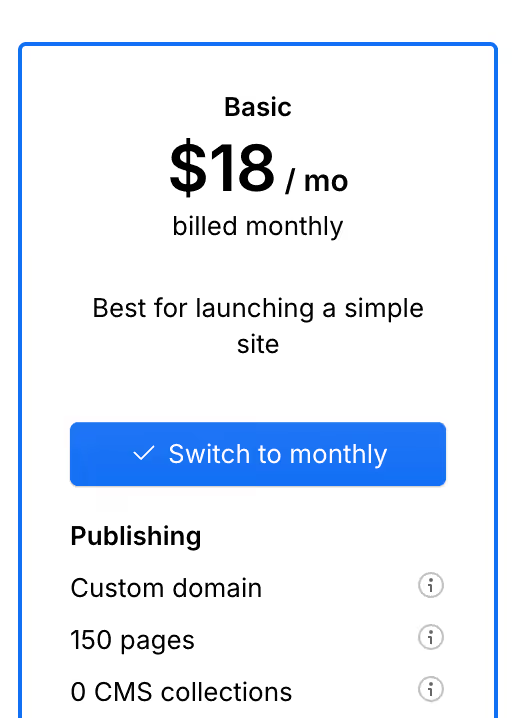
You Can Also Check All Invoices and see how often you're being charged (every month vs once per year).
These businesses have migrated to Webflow
And their marketing teams thank us for it.