Salomé Sperling

Lead Creative Webdesigner
April 7, 2026
Summary of the article
Client Payments is Webflow's built-in billing handoff tool: you send a payment request from your site settings, the client adds their card, and Webflow bills them directly for the Site plan going forward. You retain full Designer and publishing access unless you explicitly transfer the site. It replaced the older Client Billing system, which was less flexible, offered limited visibility into payment status, and was harder to reverse. Client Billing still works for existing setups but is no longer available for new handoffs — Client Payments is now the only supported method. The key distinction is that Client Payments hands off billing only, not site ownership or access, giving agencies a clean separation between their infrastructure costs and client hosting costs.

Summarize with AI
Webflow Client Payments is a billing feature that allows agencies and freelancers to hand off Site plan hosting costs directly to their clients. Instead of paying for client hosting yourself and invoicing separately, you send a payment request through Webflow, and the client's card is charged automatically each month by Webflow.
Client Payments replaced the older Client Billing system, which had similar goals but worked differently under the hood.
1. What Webflow Client Payments is
Client Payments is a built-in billing handoff tool for agencies, freelancers, and consultants who build sites for clients but don't want to carry the hosting costs long-term.
How it works:
- You build a site for a client in your Workspace.
- When the site is ready to go live, you send a Client Payment request from the site settings.
- The client receives an email invitation to add their payment method and accept the Site plan subscription.
- Once accepted, Webflow bills the client directly each month for the Site plan (Basic, CMS, Business, Ecommerce).
- You (the agency/freelancer) retain full Designer and publishing access unless you choose to hand that over too.
Key benefits:
- No upfront hosting costs for you—the client pays Webflow directly.
- Automatic renewals—the client is billed monthly without you having to send invoices.
- Clean separation—your agency Workspace billing stays separate from client Site plan billing.
- Client transparency—clients see exactly what they're paying Webflow for hosting, with clear invoices.
2. What legacy Client Billing was
Client Billing was Webflow's original system for letting clients pay for their own hosting, available before Client Payments launched.
How it worked:
- You built a site in your Workspace.
- You transferred billing responsibility to the client via a "Client Billing" invite.
- The client added their card and was billed directly by Webflow for the Site plan.
- You kept Designer and publishing access (unless you explicitly transferred the site entirely).
Why it was deprecated:
- Client Billing was less flexible—once billing was transferred, it was harder to reverse or adjust.
- It had limited visibility—agencies couldn't always see the client's billing status or when payments failed.
- It was confusing—clients didn't always understand what they were paying for or how to manage their subscription.
- It lacked modern billing features like proration, billing frequency switching, and detailed invoicing that Client Payments now supports.
Webflow sunset Client Billing in favor of Client Payments, which is now the only supported method for client billing handoff.
3. Key differences: Client Payments vs Client Billing
Bottom line: Client Payments is more flexible, transparent, and agency-friendly than the old Client Billing system.
4. What happened to existing Client Billing setups?
If you set up Client Billing before it was deprecated:
Sites already on Client Billing:
- They continue to work as-is—Webflow didn't force-migrate them to Client Payments.
- The client continues to be billed directly by Webflow.
- You (the agency) retain Designer access unless you explicitly transferred the site.
Limitations of grandfathered Client Billing sites:
- You cannot send new Client Billing invites—only Client Payments is available for new handoffs.
- You may have less visibility into the client's billing status compared to Client Payments.
- If the client's payment fails, you may not be notified as quickly.
Can you migrate a Client Billing site to Client Payments?
- Not directly—there's no automated migration tool.
- You would need to:
- Cancel the client's existing Client Billing subscription.
- Take over the Site plan temporarily with your own card.
- Send a new Client Payment request to the client.
- Have the client accept the new payment request.
This process can cause brief downtime or billing gaps, so it's only recommended if the old Client Billing setup is causing problems.
5. When to use Client Payments (and when not to)
Use Client Payments when:
- You want to hand off hosting costs to the client but keep Designer and publishing access for ongoing maintenance.
- You manage multiple client sites and want clean separation between your agency's billing and client billing.
- The client prefers direct billing from Webflow rather than paying you and having you pay Webflow.
- You want automatic renewals without having to invoice the client manually each month.
Don't use Client Payments when:
- You want to mark up hosting costs and keep a margin—Client Payments bills the client at Webflow's standard rates, so you can't add a markup. (In this case, pay for hosting yourself and invoice the client separately.)
- You're planning to fully transfer the site to the client's own Workspace soon—it's simpler to transfer the site first, then let them add their own Site plan.
- The client is non-technical and you want full control over billing to avoid support issues—keeping hosting on your own card and invoicing the client separately may be cleaner.
6. How Client Payments affects your agency Workspace
Does the client's Site plan charge appear on your Workspace invoice?
- No—once the client accepts the Client Payment request, their Site plan is billed separately to their card, not yours.
- Your Workspace invoices only show your own Workspace plan, your own Site plans, and any add-ons you pay for.
Does the site stay in your Workspace?
- Yes—by default, the site remains in your Workspace even after the client starts paying for hosting.
- You retain full Designer, CMS, and publishing access unless you explicitly transfer the site to the client's Workspace.
Can you still edit the site?
- Yes—Client Payments only hands off billing, not site ownership or access.
- You can continue designing, publishing, managing CMS, and making changes as usual.
Can the client edit the site?
- Only if you invite them as a Workspace member or guest with Designer or Editor access.
- Client Payments does not automatically grant the client any access to the Designer or CMS—that's a separate permissions decision.
7. What the client sees and does with Client Payments
Client's experience:
- They receive an email invitation from Webflow titled something like "You've been invited to pay for hosting on [site name]."
- The email explains:
- What they're being asked to pay for (Site plan hosting).
- The monthly cost (e.g. $29/month for CMS plan).
- Who sent the request (your agency name).
- They click a link and land on a Webflow-hosted checkout page.
- They enter their payment details (card, billing address, VAT number if applicable).
- They accept the subscription and are charged the first month immediately.
- Webflow sends them a confirmation email and invoice.
Ongoing client experience:
- The client receives monthly invoices from Webflow via email (not from you).
- They can view and update their payment method by logging into a simple Webflow billing portal (link provided in invoices).
- If their payment fails, they're notified directly by Webflow, and you're also notified so you can follow up.
Can the client cancel or change the Site plan?
- Not directly—the client cannot log into the Webflow Designer or dashboard to cancel or change the plan.
- They must contact you (the agency) to request changes, and you make the changes in the site settings.
- Alternatively, you can transfer full ownership of the site to the client's Workspace, at which point they can manage everything themselves.
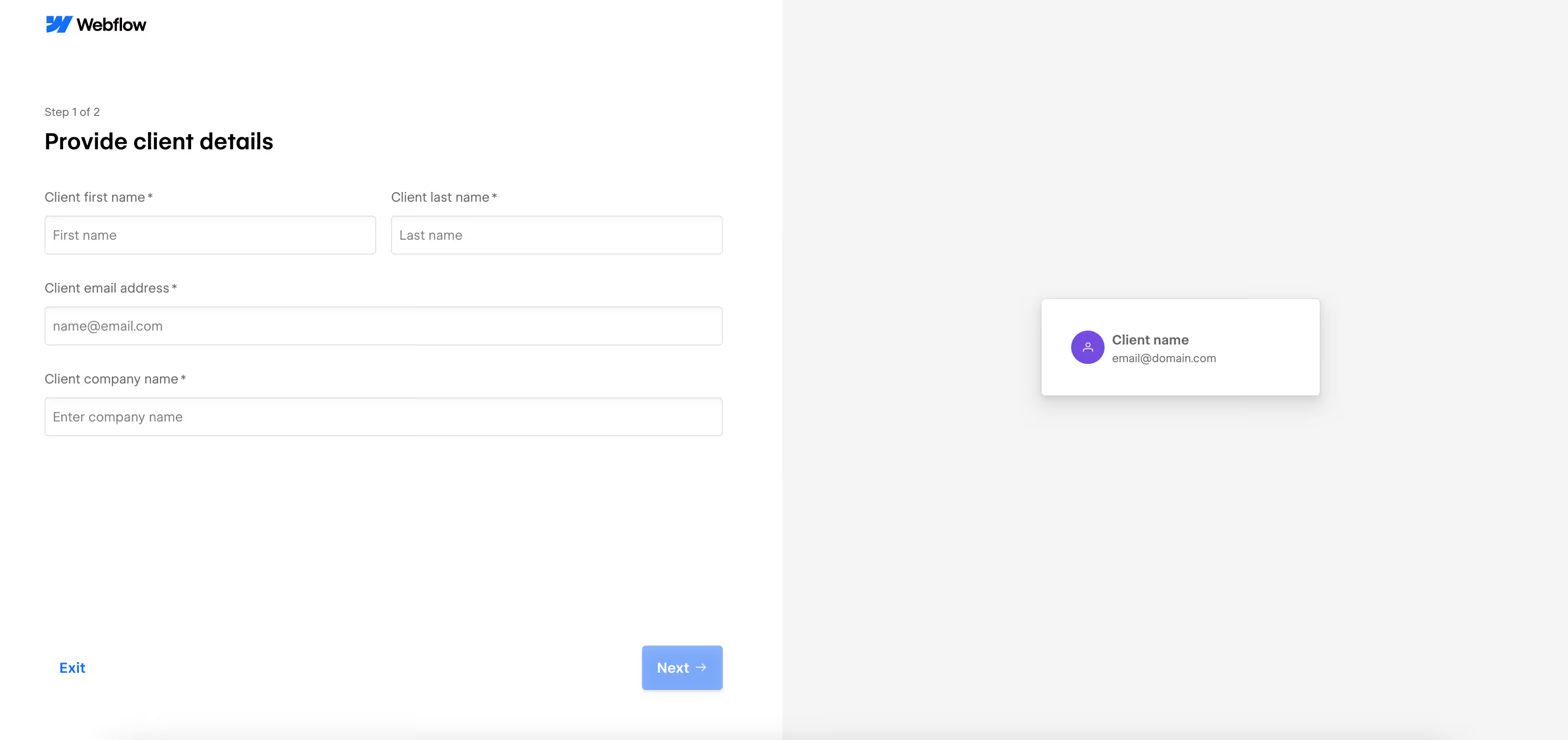
8. How to send a Client Payment request (quick overview)
1. Open the site in your Webflow Dashboard.
2. Go to Left menu → Client management

3. Click Add client → Request payment.

4. Select the Site plan tier the client should pay for (Basic, CMS, Business, Ecommerce).

5. Click Send request. The client receives the invitation email immediately.
9. What happens if the client's Client Payment fails?
If the client's payment fails (expired card, insufficient funds, bank decline):
You (the agency) are notified:
- You receive an email alert from Webflow saying the client's payment failed.
- A red banner appears on the site's dashboard and in site settings.
The client is also notified:
- Webflow emails the client with instructions to update their payment method.
Grace period:
- The site enters a grace period (typically 3–7 days) during which it remains live.
- If the client doesn't fix the payment in time, the site is unpublished and moved to staging.
Your options:
- Contact the client and remind them to update their card.
- Temporarily take over billing by pausing Client Payments and adding your own Site plan to keep the site live while the client resolves the issue.
- Let the site go offline if the client refuses to pay or is unresponsive.
See "How to troubleshoot failed or declined Client Payments" for full details.
10. Can you still use Client Billing if you set it up years ago?
Yes—existing Client Billing setups are grandfathered and continue to work.
However:
- You cannot create new Client Billing invites—only Client Payments is available for new client handoffs.
- Webflow may eventually force-migrate old Client Billing sites to Client Payments or require manual migration, but as of February 2026, there's no official timeline for this.
If your old Client Billing setup is working fine, you can leave it as-is. If you run into issues (payment failures, lack of visibility, client complaints), consider migrating to Client Payments.
11. Summary: when to use each (if you still have the choice)
These businesses have migrated to Webflow
And their marketing teams thank us for it.